
Characters & riggingAnimation & visuals
How to test ARKit blendshapes in Blender with Business Casual Woman
Test three facial movements by hand before rehearsing an iPhone capture for an office-training scene.

Before recording a whole training script, try three movements on your presenter in Blender: blink one eye, smile on one side and open the jaw. Then record one short line. If a movement goes wrong, you’ll have a manual pose and a captured pose to compare.
The Business Casual Woman model includes a Rigify body and face rig, 52 ARKit blendshapes, lip-sync controls and expression presets. The product images below show the supplied rig and poses. The rehearsal is a test you can run with your own capture setup.
If you want a different presenter, choose another character with ARKit blendshapes and run the same three checks on its face rig.
Check three movements by hand
Open a working copy of the Blender file and frame the presenter from the shoulders up. Select the face mesh and look for its shape keys in Object Data Properties. Write down the names used in the file. If a rig control drives a key, move that control and watch how the face responds.

The face rig on Business Casual Woman. Work close enough to see where the upper lid meets the lower lid.
Return to neutral between checks. For each movement, pause at half strength as well as at the end.
- Left blink. Close the character’s left eye. Viewed head-on, it appears on your right. Check that the lashes follow the lid and the opposite eye stays open.
- Right smile. Raise the character’s right mouth corner. Turn to a three-quarter view and inspect the cheek and the corner of the lips as the shape builds.
- Jaw opening. Open the jaw slowly. Watch the lower teeth and chin, then return to neutral and check that the lips can meet again.
Apple calls these movements eyeBlinkLeft, mouthSmileRight and jawOpen. Use them as references when matching the incoming channels to the names on your rig. Apple’s blendshape reference
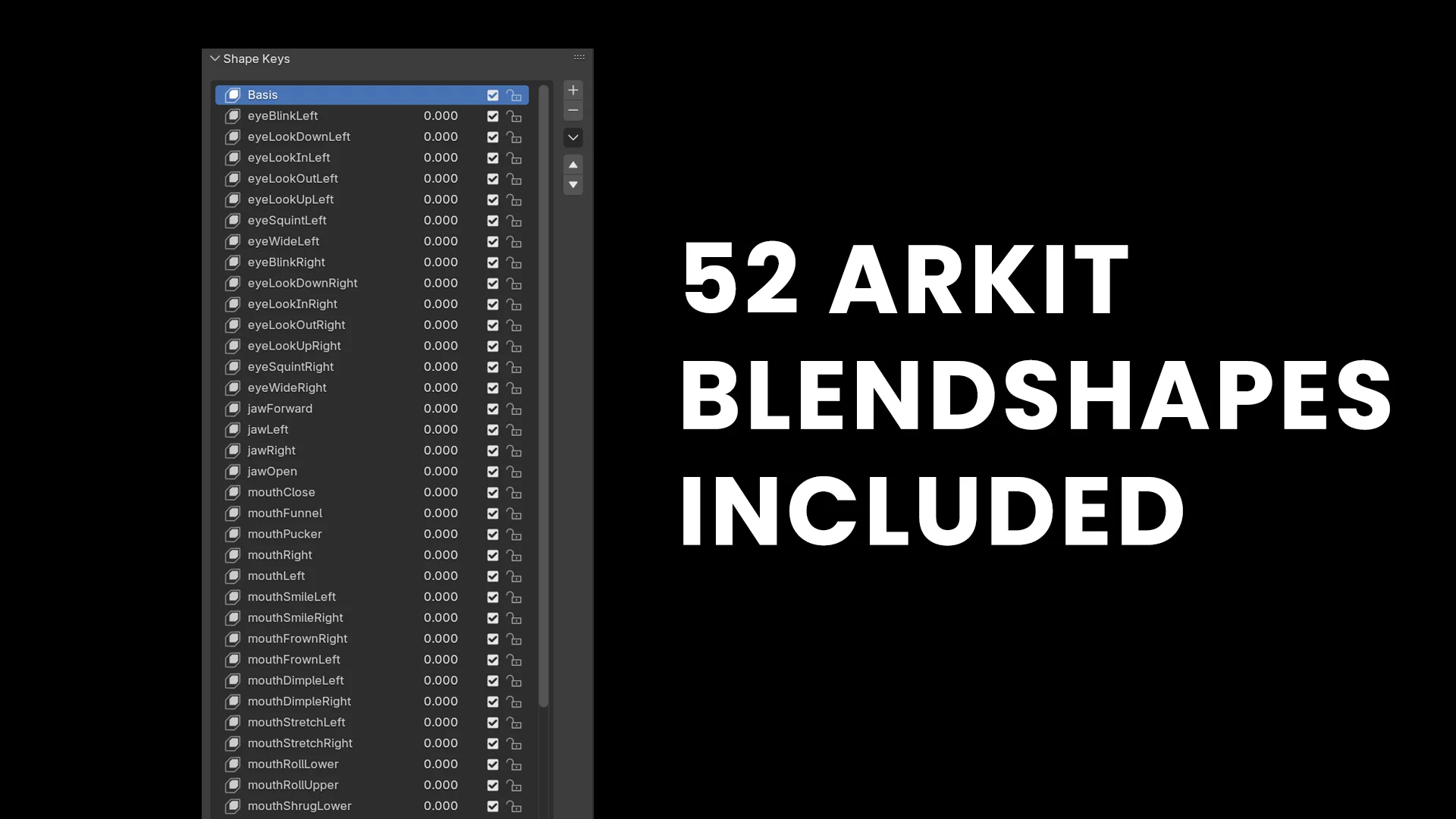
ThreeDee’s shared blendshape reference. In your file, select the face mesh and watch one value while you move the matching control.
Compare the incoming signal with the Blender pose
Start with the movement you found easiest to see by hand. If that was the jaw, keep your brows and lips relaxed and open your jaw twice while watching the incoming value in your receiver. Then look at the mapped value in Blender. Following the movement from your face to the receiver to the mesh helps locate the first point where it changes.
| What you see | What to check next |
|---|---|
| The receiver shows no change when you open your jaw. | Check whether the capture app is tracking your face and sending to the selected receiver. Repeat the test before editing the rig. |
| The receiver value changes, but the character holds its pose. | Check which mesh and shape key the jaw channel drives. Try that same key by hand again. |
| The character moves, but a one-sided smile pulls on the opposite cheek. | Face the camera, raise only your right mouth corner and compare it with the character’s own right side. Check the mapping before swapping keys. |
| The face looks good in the viewport but flat beside the training slide. | Replay the same take in a closer crop. If the lips become readable, adjust framing or lighting before changing the animation. |
Rehearse one line on camera
Once your compatible iPhone capture app and Blender receiver are connected, record the performer and viewport side by side. Hold a neutral face for a moment, repeat the three movements, then say, “Welcome back. Open the file with me.” Leave a beat after “me” so you can see the jaw settle. Apple’s face-tracking example

Two supplied expression presets show how the mouth, cheeks and lids change together. Use the recorded take to inspect the movement between poses.
Replay the B in “back” and the F in “file.” The lips should meet for B. For F, look for contact between the lower lip and upper teeth. If the manual jaw test worked but the captured jaw stays still, inspect the receiver’s jaw mapping. If the wrong eye blinks, check the character’s left and right against the incoming channels before changing the mesh.
Check the speech shapes on the soundtrack
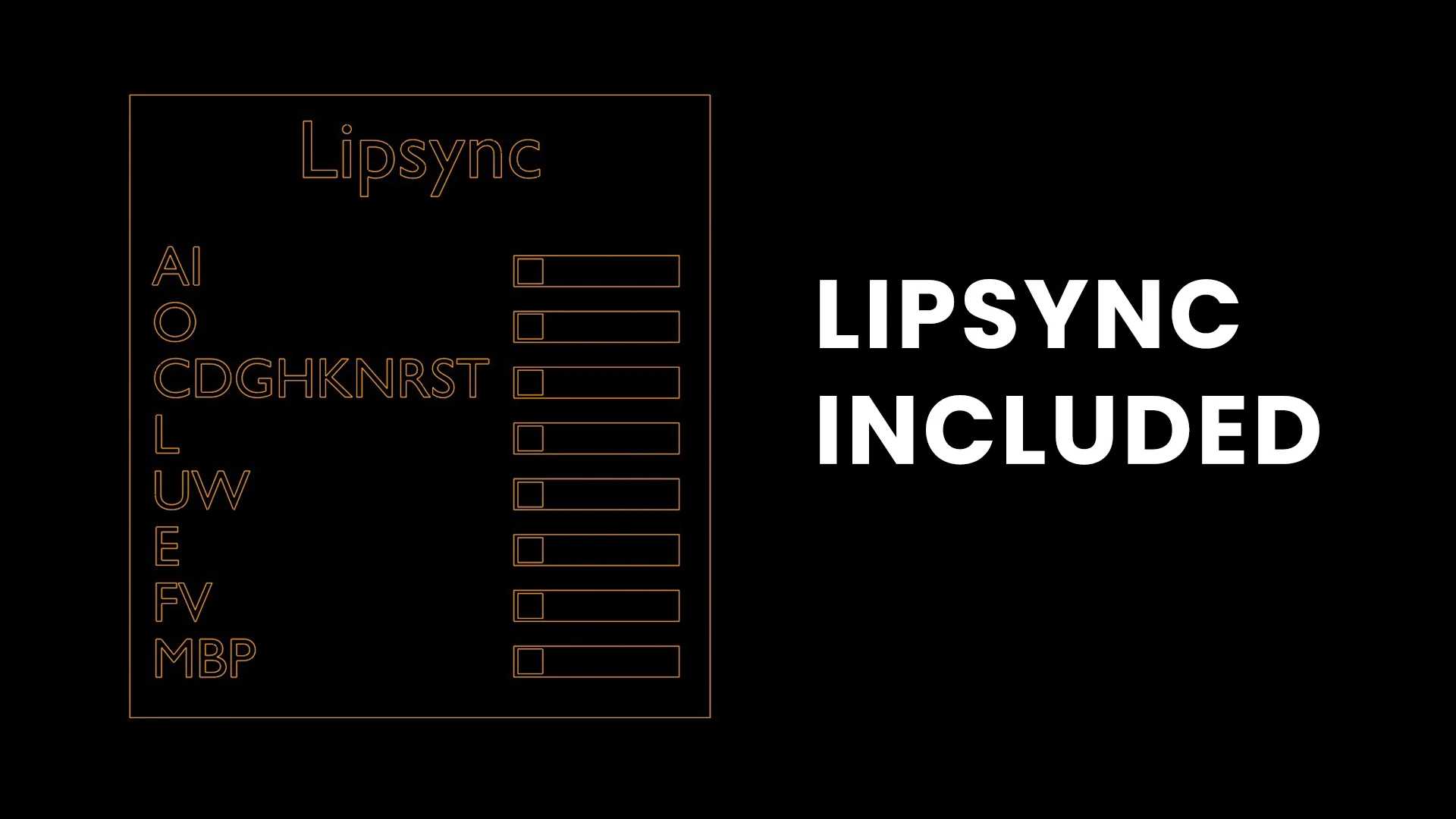
The shared lip-sync chart groups sounds that look similar on the lips. FV and MBP are useful landmarks when reviewing this line.
Scrub through “back” a frame at a time. Just before you hear the B release, look for both lips to touch briefly. Next, find the F in “file.” The lower lip should approach the upper teeth while air can still pass. A jaw opening can look lively through both words and still miss the difference between them.
For a hand-keyed comparison, duplicate the take or work in a copy of the file. Use the available speech controls to pose those two contacts against the same audio. Play both versions at normal speed. Keep the correction only if the word becomes easier to read in context. If the receiver is already driving a mouth control, check which input owns it before layering another animation on top.
Watch at the size your learner will see
Place the presenter beside a slide or screen recording at the intended delivery size. Play the greeting again. Can you still read the smile? Can you see the lips close? If the movement looks clear in Blender but disappears in the final shot, compare the framing and lighting before you exaggerate the facial motion.

Use the supplied lighting scene as a starting point for the final-size check.
If your presenter needs to look like someone on your team or deliver a particular line, ask ThreeDee about a custom character or animation. Include a character reference and the line you want to record. If you already have a Blender rig, tell us whether you need help preparing it for ARKit capture.